Built-in cleanup actions
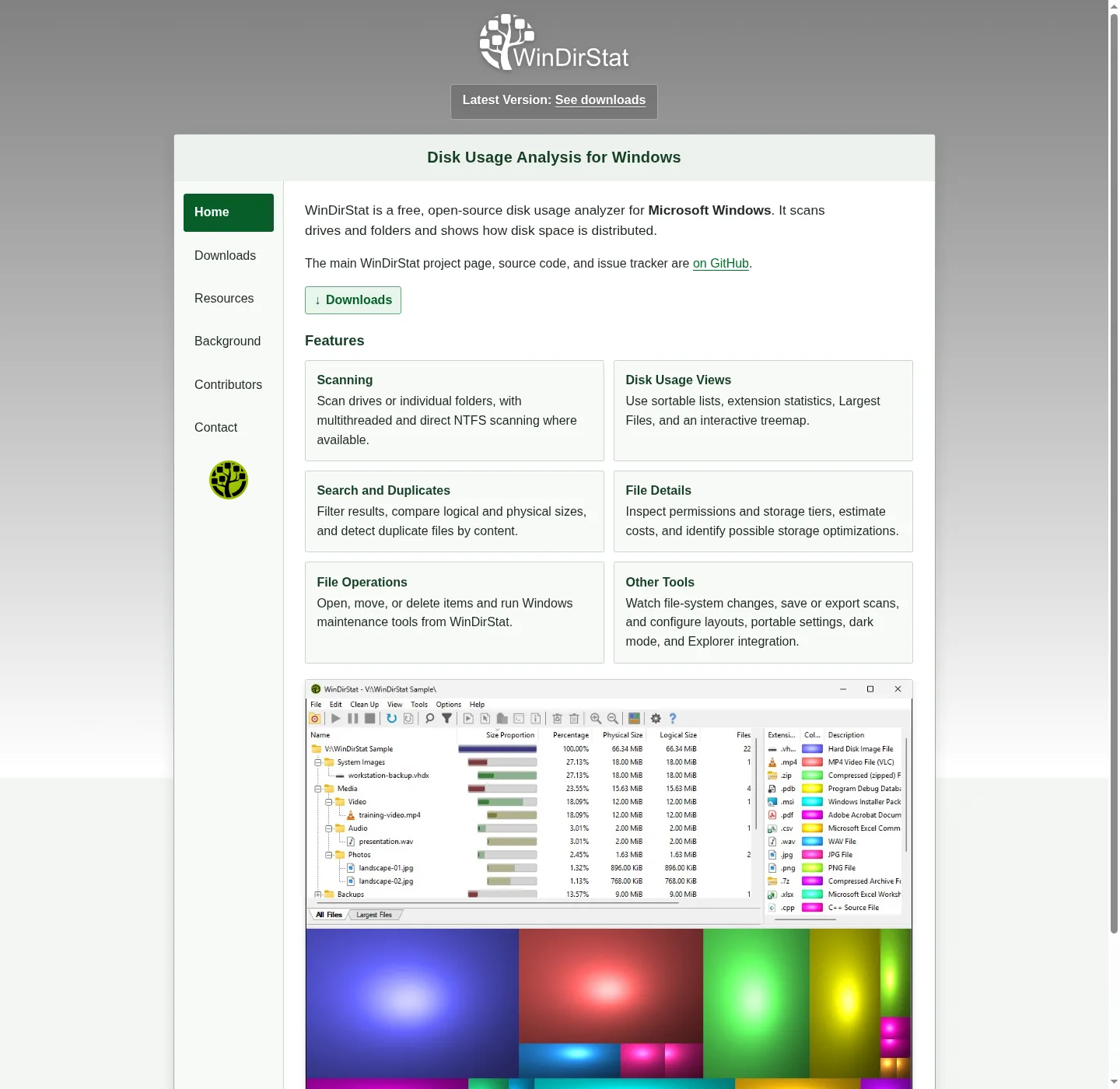
A scan is a map. Cleanup is optional. README built-in actions: opening items, copying paths, selecting in Explorer, invoking the Explorer context menu, opening Command Prompt or PowerShell, moving files, showing properties, deleting files, and emptying folders or the Recycle Bin. Use copy-path and select-in-Explorer before any delete. Eyes on the real folder beat a rectangle on a treemap.
Install if the app is missing:
winget install -e --id WinDirStat.WinDirStatRelated: find large files, read the treemap, duplicate files by hash, guides.
Recycle Bin, not silent wipe
Deleting from the scan can go to the Recycle Bin. Emptying the Recycle Bin is a separate README action. Use the first, then wait, then empty if you are sure. Silent wipe of a Windows tree is how people spend the weekend on install media. If Recycle Bin is not the right place (huge ISO you already copied off-disk), move the file first with the move action, then delete.
Emptying a folder is also named. That is for a folder you own, like an old extract. It is not for C:\\Windows\\System32. The treemap does not know your intent. You do.
Disk Cleanup and other Windows shortcuts
README Windows cleanup and maintenance shortcuts: Disk Cleanup, Programs and Features, DISM, shadow copies, defrag, CHKDSK, VHDX optimization, hibernate files, user profiles, Mark-of-the-Web tags, sparse files, and NTFS compression. Those are Windows tools launched from the app. They are not a second WinDirStat engine.
Use Disk Cleanup when the hog is a Windows-maintained class: temporary files, update remnants, the kinds of things Disk Cleanup already lists. Use Programs and Features when the hog is an installed app you recognize. Use DISM only if you already know DISM. These notes do not walk DISM switches. CHKDSK and defrag are maintenance, not “make a 40 GB game smaller.”
Hibernate files and shadow copies can look like mystery boxes on a treemap. Read the Windows docs for those features before you tick a box. VHDX optimization is for virtual disks you own. NTFS compression is a trade of CPU for space. Do not compress a whole system volume as a first try.
User-defined cleanup actions
README names user-defined cleanup actions. Point them at jobs you repeat: move videos to D:, open a specific archive folder, run a script you wrote. Do not define an action that recursively deletes %SystemRoot%. Portable settings can travel with a zip folder if you carry the app that way: portable or MSI.
Explorer context-menu integration is also named. If you open WinDirStat from a folder in Explorer, you already have the path. Scan that folder, then clean that folder. That is safer than scanning C: and clicking the biggest box.
Do not delete Windows folders blindly
The treemap will draw WinSxS, System32, Winre, installer caches, and pagefile-adjacent objects as large rectangles because they are large. Large is not “junk.” Delete user ISOs, old extracts, duplicate photos, old VMs you created. Leave Windows. If a Windows component is the hog, Disk Cleanup or a Windows settings page is the path, not Recycle Bin on System32.
When in doubt, copy the path, paste it into a note, and stop. Scan again tomorrow. File Watcher will show deletes you already did: created, deleted, modified, renamed events.
| Looks huge | First move |
|---|---|
| Your ISO, zip, or video | Recycle Bin, or move off the volume |
| Duplicate copies you hashed | Keep one, Recycle the other. See duplicate files. |
| Installed app you recognize | Programs and Features shortcut |
| Windows update or component store | Disk Cleanup. Do not hand-delete. |
C:\Windows and children | Stop |
| User profile you still use | Open the profile, delete known caches only |
| VHD / VHDX you own | VHDX optimization or move the disk |
| Unknown system object | Properties, then stop |
Empty folders and move files
Moving files is a README action. Use it when the volume is full and another volume is empty. Deleting is not required to “clean.” Emptying folders is for husks after a move. Show properties when you need size on disk before you decide.
Opening Command Prompt or PowerShell from the selection is for people who already have a command. These notes do not invent a wipe script.
After cleanup, refresh the scan
Refresh, or run a new scan, so the treemap matches disk. Saved scans and CSV exports are snapshots. They will not shrink themselves. File Watcher can confirm deletes as events. If you emptied Recycle Bin, the free space should show in Explorer as well. Storage settings remain a second number: check storage on a PC.
Explorer Properties is still a total if you want one folder summed: switch from folder Properties. Move notes: move off Explorer.
How to install before you clean
Winget on Windows 10 1809+ or Windows 11, or WinDirStat-x64.msi from GitHub. ARM64 and x86 MSI on the same tag. Store 9ph1gl95p3wf supporting. Safety: is this disk space analyzer safe. Windows walk: install on Windows. Winget: winget command. Releases: open source disk space analyzer releases. GitHub: open source disk space analyzer on GitHub. Download safely: download safely. Home: disk space analyzer. About: about. This computer: disk space analyzer for this computer. Disk analyzer: disk analyzer. Product home: windirstat.net. License: LICENSE.md. How to install winget: how to install winget. TreeSize: vs TreeSize. SpaceSniffer: vs SpaceSniffer. WizTree: vs WizTree.
Frequently asked questions
How do I delete from the scan without wrecking Windows?
Confirm the path, use Recycle Bin, and skip Windows system folders. Use the Disk Cleanup shortcut for Windows component hogs. Related: find large files.
Does this disk space analyzer empty the Recycle Bin?
The README names deleting files and emptying folders or the Recycle Bin as built-in actions. That is still a delete. Confirm the selection.
What Windows maintenance shortcuts exist?
README names Disk Cleanup, Programs and Features, DISM, shadow copies, defrag, CHKDSK, VHDX optimization, hibernate files, user profiles, Mark-of-the-Web tags, sparse files, and NTFS compression.
Can I define my own cleanup action?
Yes. README names user-defined cleanup actions. Keep those pointed at folders you own, not at Windows.
How do I install before I clean?
Run winget install -e --id WinDirStat.WinDirStat or take WinDirStat-x64.msi. Guide: install on Windows.