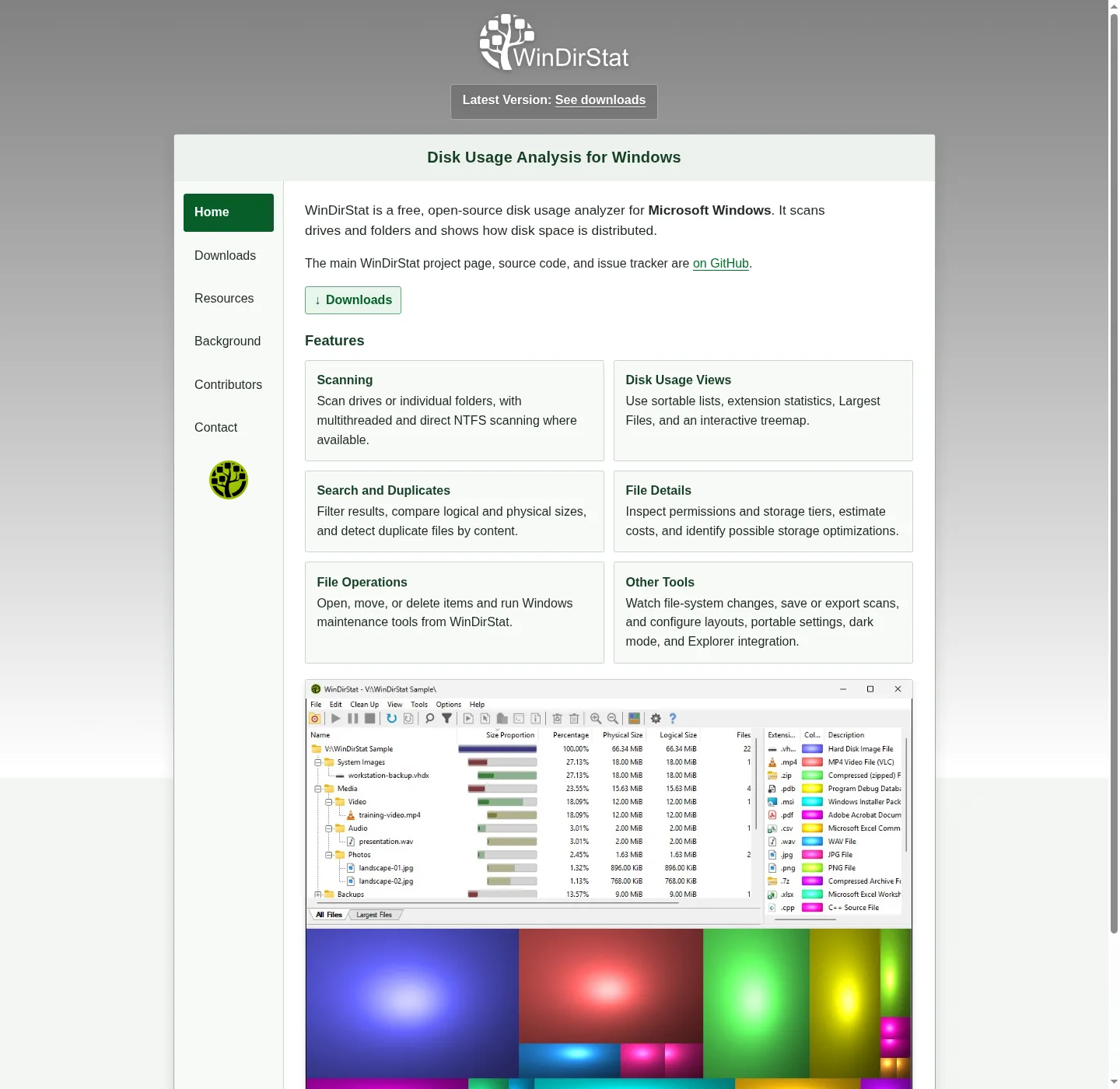
Three panes after a scan
WinDirStat scans local drives, selected drives, individual folders, and command-line targets, then shows where storage went through a sortable directory tree, an extension/type breakdown, and an interactive treemap. Those three are the README picture. Larger files and folders take larger areas. Treat the directory list as names and sizes, the extension list as types, and the treemap as area.
Install first if the window is missing:
winget install -e --id WinDirStat.WinDirStatRelated: install on Windows, guides, disk space analyzer, and disk space analyzer for this computer. After the walk finishes, wait for the tree, the types, and the map to fill. A half-drawn map is not a verdict.
The README also names All Files, Largest Files, Duplicate Files, Search Results, and File Watcher. Those sit beside the three-pane picture. They do not replace it. Finding hogs: find large files. Hash matches: duplicate files by hash.
How the map is sized
Area follows size. A 40 GB video is a large rectangle. A 4 KB log is a speck. Folders nest: children tile inside the parent. When one child owns most of a parent, that child is most of the parent’s rectangle. That is the point of a treemap. Explorer folder Properties only printed a total. The map shows which child ate the total.
Styling is configurable: KDirStat or SequoiaView, named in the README. Pick the one you can read. Extension labels can sit on the map. Zooming and parent/child reselection are named. Click a rectangle to select the object. Zoom in when the parent is noise. Reselect the parent when you went too deep.
Sortable file details include logical/physical size, percentages, item counts, attributes, owner, modified time, free/unknown space, hardlinks, and hash prefixes. The directory list and the map describe the same tree. If the list says a folder is huge and the map looks quiet, you are probably on the wrong sizing mode or the wrong zoom.
Colors and the extension list
The extension list is the type breakdown. Each extension gets a color. The treemap paints files with those colors. If the map is almost one color, one type owns the scan: video, disk image, archive, or a project output folder full of one suffix. Click the extension row. The map should highlight that type. Double-check the directory list for the folder that holds those files.
Unregistered types can be grouped. That is a current-release enhancement. Daily reading still starts with the extension list the README names. A folder of mixed types looks like a quilt. A folder of one type looks like a slab. Neither is a delete order. The slab tells you the type. The directory list tells you the path.
Search and filters include regular expressions, path/name filters, size filters, and reparse-point exclusions. Use a size filter when you only care about objects over a threshold. Use a path filter when the map is crowded with a tree you already understand. Then reread the treemap. Filtering is not the same as deleting.
Zoom, parent, and child
Interactive treemap navigation in the README: zooming, parent/child reselection, extension labels, logical or physical sizing. Zoom into a hot folder until the children have readable rectangles. If you lose the path, reselect the parent. The directory tree should stay in sync with the selection. If it does not, click the folder in the tree, then look at the map again.
Free space and unknown space can appear in sortable details. A volume view may show free space as an area. That rectangle is not a file. Do not try to delete free space. Unknown space is a reminder that the walk could not name every byte. Elevated privilege support is in the README when a protected tree looks empty. Rerun elevated, then compare the map.
File Watcher is a separate view for created, deleted, modified, and renamed events after you already have a scan. It is not a second treemap. Use it when you are watching a folder change. For a first read, stay on directory list, extension list, and treemap.
Logical size versus physical size
The README lets you inspect logical versus physical size, and the treemap can follow either mode. Logical size is the file length. Physical size is allocation on disk. Sparse files, NTFS compression, and hardlinks make those numbers diverge. Properties in Explorer already showed size and size on disk. The map can do the same split.
If a compressed tree looks huge logically and small physically, you are looking at compression, not a second copy. If a sparse disk image looks huge logically, physical mode may shrink the rectangle. Switch the mode before you plan cleanup. NTFS compression is also a maintenance shortcut the README names. Do not flip compression on a whole system volume as a first experiment.
Hardlinks are listed in sortable details. Two directory entries can share one allocation. The map and the duplicate view are different jobs: duplicate files by hash groups content hashes. Hardlink deduplication is named next to duplicate detection. Read both before you remove a “copy” that is actually a link.
| View | What to read |
|---|---|
| Directory tree | Names, sizes, percentages, item counts, owners |
| Extension list | Types and colors that paint the map |
| Treemap | Area by size, zoom, parent/child, labels |
| Largest Files | Heaviest files across the scanned tree |
| Duplicate Files | Hash groups, not area |
| Search Results | Regex and filters on the current scan |
| File Watcher | Created, deleted, modified, renamed events |
| Sizing mode | Logical or physical, including on the map |
When the map looks wrong
A treemap that is all one color is often one extension. A treemap that looks empty on a folder you know is full may need elevation, or a reparse-point exclusion may have skipped a junction. Fast NTFS scanning and multithreading are named in the README. Let the scan finish. Save or reload scans if you want to return without walking again. CSV scan import/export is there for a spreadsheet record.
People coming from Explorer Properties should scan the same folder, not guess a different drive: switch from folder Properties. Move off Explorer: move off Explorer. Storage settings still give a free-space number: check storage on a PC. Other maps exist. SpaceSniffer is treemap freeware: vs SpaceSniffer. WizTree is MFT-first: vs WizTree. TreeSize is a Jam Software product: vs TreeSize.
After you can name the hog
Once a rectangle has a path and a type, stop reading and decide whether to act. Cleanup is a separate guide: cleanup from a scan. Do not delete Windows folders blindly. Recycle Bin and Disk Cleanup are the README first tools for Windows-owned waste. User-defined cleanup actions exist for jobs you already trust.
Fetch path still matters. Files from GitHub Releases, winget id WinDirStat.WinDirStat, Store 9ph1gl95p3wf, or links from windirstat.net. Safety: is this disk space analyzer safe. Winget: winget command. Portable or MSI: portable or MSI. Releases: open source disk space analyzer releases. GitHub: open source disk space analyzer on GitHub. About: about. Disk analyzer: disk analyzer. How to install winget: how to install winget. License: LICENSE.md.
Frequently asked questions
What does the treemap show in this disk space analyzer?
Larger files and folders take larger areas. The README names an interactive treemap with zooming, parent/child reselection, extension labels, and logical or physical sizing. Related: find large files.
Why is the treemap all one color?
Colors follow the extension list. One extension that owns most of the scanned tree will dominate the map. Click that type in the extension list, then zoom the matching rectangles.
Can I scan one folder instead of a whole drive?
Yes. The README names local drives, selected drives, individual folders, and command-line targets. Scan the folder you care about, then read its directory list and treemap.
What is logical versus physical size on the treemap?
The README names logical or physical sizing, including in the treemap. Sparse files, NTFS compression, and hardlinks are why the two numbers diverge. Switch the mode before you delete.
Which views sit with the treemap?
README views: All Files, Largest Files, Duplicate Files, Search Results, File Watcher, Extension, and Treemap. Read the directory list and extension list with the map, not instead of it.