Install this analyzer with winget
WinDirStat is a Windows disk usage statistics viewer and cleanup tool. The maintained package id in Windows Package Manager is WinDirStat.WinDirStat. The command these notes paste is:
winget install -e --id WinDirStat.WinDirStatThat identifier is in microsoft/winget-pkgs under manifests/w/WinDirStat/WinDirStat. Installer type is WiX. Scope is machine. Installer URLs on that manifest are GitHub Releases MSI files for x86, x64, and arm64. Default install location is %ProgramFiles%\WinDirStat on x64 and ARM64, and %ProgramFiles(x86)%\WinDirStat on x86. Publisher on the locale yaml is The WinDirStat Team. License is GPL-2.0. Related notes: how to install winget, winget command, and disk space analyzer for this computer.
Do not substitute a random package that only resembles the name. The exact id is WinDirStat.WinDirStat. The README prints that same winget line, plus winget upgrade later.
What Windows needs first
Winget ships with App Installer on Windows 10 version 1809 or later and on Windows 11. If winget is missing from Windows Terminal or PowerShell, install App Installer from Microsoft, sign out or reopen the terminal, and run the command again. Microsoft documents the client here: winget.
The README does not name a .NET runtime. WinDirStat is a native C++ Windows app built with Visual Studio 2022. There is no WebView2 requirement in the README. If the MSI finishes and no window appears, confirm you launched the Start menu shortcut for the architecture you installed, then look in %ProgramFiles%\WinDirStat on a 64-bit PC.
README Compatibility for the 2.x line, developed for and tested on: Windows 7, Windows 8, Windows 8.1, Windows 10, Windows 11, Windows Server 2008 R2, 2012, 2012 R2, 2016, 2019, 2022, and 2025. The README says they may work on older or newer operating systems but are not supported. Match the MSI to the CPU: x64 for most desktops, ARM64 for Snapdragon and recent Surface devices, x86 for 32-bit Windows.
GitHub x64 MSI as the other path
If you prefer a file from GitHub Releases, take the 64-bit MSI whose name is WinDirStat-x64.msi. The README says: if you prefer a manual installer, download the 64-bit MSI installer. That is the WiX MSI winget already wraps. Latest/download URL on GitHub omits the tag: https://github.com/windirstat/windirstat/releases/latest/download/WinDirStat-x64.msi. Public copy still says the current release. Do not pin a number from a blog.
Portable alts on the same tag are WinDirStat.zip and WinDirStat.7z. Chooser: portable zip or MSI. Current assets live on open source disk space analyzer releases. A safe download walkthrough is on download a disk space analyzer safely. Repo tree: open source disk space analyzer on GitHub. Product homepage field on GitHub is windirstat.net. Files still come from GitHub Releases or the package managers the README lists.
The Microsoft Store listing id is 9ph1gl95p3wf. Chocolatey is choco install windirstat. Scoop is scoop install extras/windirstat after scoop bucket add extras. MSIX and an msixbundle sit on the same GitHub tag. Those are supporting paths. These notes map winget and GitHub because those two share the same MSI.
Which file to take
| File or path | When to take it |
|---|---|
WinDirStat-x64.msi | Default Windows x64 install. Winget wraps this MSI family. |
WinDirStat-arm64.msi | ARM64 Windows, including newer Surface and Snapdragon PCs. |
WinDirStat-x86.msi | 32-bit Windows. |
WinDirStat.zip / WinDirStat.7z | Portable folder. Extract, then run the exe for the CPU. |
| MSIX / msixbundle | Store-style package on the same tag. Supporting. |
Winget id WinDirStat.WinDirStat | Same MSI through App Installer, machine scope. |
Microsoft Store 9ph1gl95p3wf | Store-managed install and updates. Supporting. |
| License | GPL-2.0, LICENSE.md on the repo. Application GPL v2, not later. |
| Account | None |
Never pin a number from a blog. Open the current tag. Skip WinDirStat-Hashes.txt as an installer (checksums only) and skip WinDirStat-DebugSymbols.7z. Skip GitHub automatic source archives as the daily install.
First run after install
Launch WinDirStat from the Start menu after a setup or winget install, or from the exe inside a portable folder. Pick a local drive, selected drives, or a single folder. Command-line targets are also in the README. You do not need an account. The scan stays on the PC.
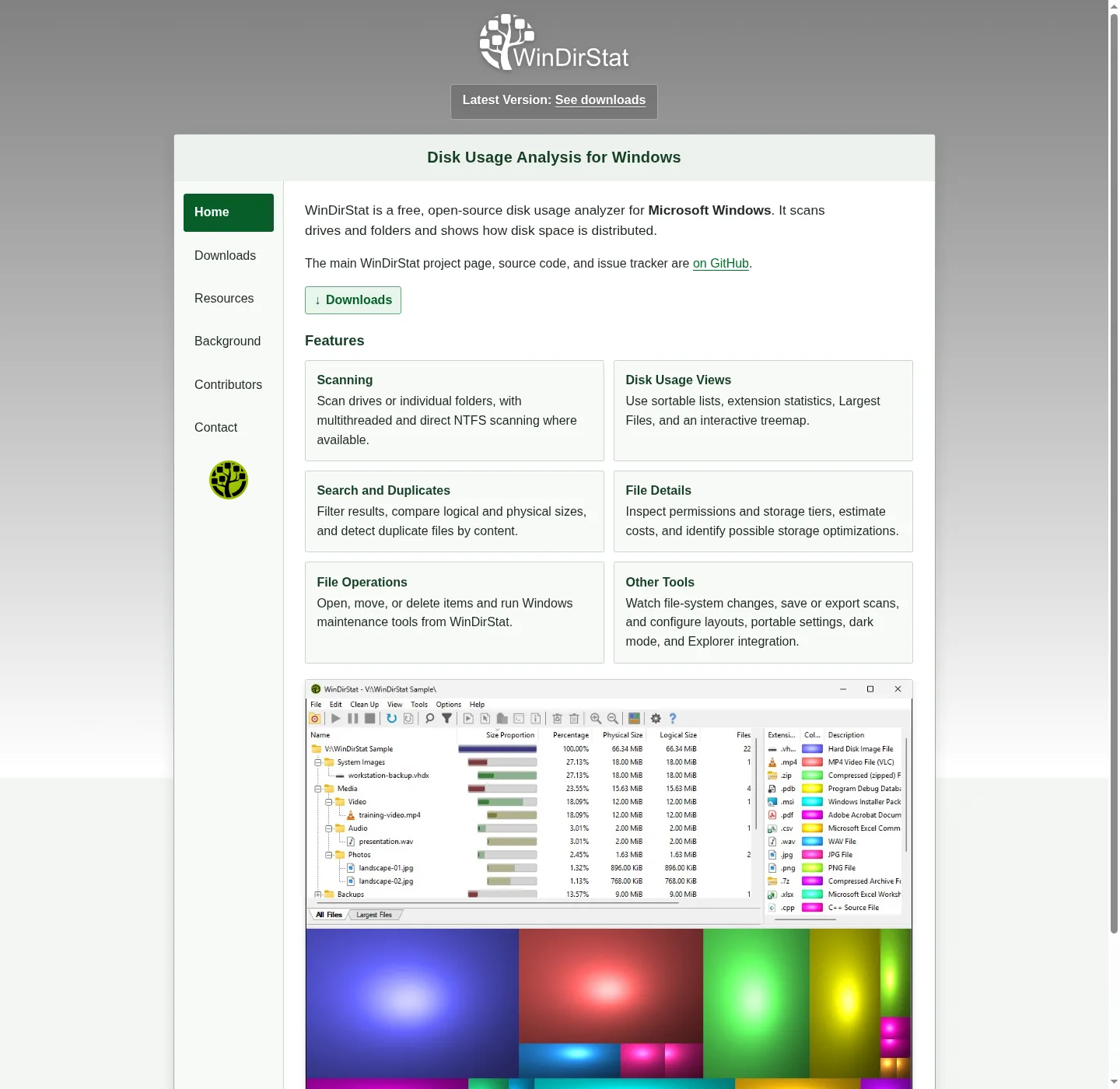
After the walk, the window shows a sortable directory tree, an extension list, and an interactive treemap. Larger files and folders take larger areas. Reading that layout: read the treemap. Finding hogs: find large files. Duplicate hashes: duplicate files by hash. Cleanup actions, Recycle Bin, and Disk Cleanup: cleanup from a scan.
Settings can be portable (README “portable settings”). CSV scan import/export and duplicate CSV export are named in the README. There is no cloud account in the README. Dark mode, Explorer context-menu integration, localization, and high-DPI aware UI are listed as features. Elevated privilege support is there if a folder needs it.
If two copies run, quit extras. A Store install plus a portable zip plus a winget install is three copies. Uninstall extras in Apps settings, then keep one.
Updates and uninstall
For the installed build, return to winget or to the current GitHub release. The README names winget upgrade for later updates. Say the current release rather than a pinned tag. Portable zips and 7z archives are replaced by downloading a new archive from Releases and swapping the folder. Store installs follow Store updates. Installed MSI copies follow the winget or MSI channel you used.
To remove the app, use Settings > Apps for winget or MSI, or winget uninstall WinDirStat.WinDirStat. For a portable folder, close the exe and delete that folder. Scan CSV files you saved are just files in the folder you chose. Delete those only if you want them gone.
Issues go to WinDirStat issues. License text: GPL-2.0 LICENSE.md. README: project README. Official site: windirstat.net.
Common Windows install mistakes
People grab the first search result named after the product and run a helper from a download portal. The README “Official Downloads and Malware Warning” says unofficial sites copy the name, branding, or downloads and may offer outdated or modified files. Stay on windirstat/windirstat, the current release, winget id WinDirStat.WinDirStat, the Microsoft Store listing, or links from windirstat.net. Safety: is this disk space analyzer safe.
Mixing architectures is the next mistake. An x64 MSI on ARM64 Windows is the wrong file. Take WinDirStat-arm64.msi on ARM64. Mixing a portable folder with a winget install so two copies sit side by side is the third. Pick one channel.
The README does not list a Mac package or a Linux installer for this binary. QDirStat and KDirStat are cousins on other operating systems. If a search result offers a brew cask or an apk for this Windows name, it is not the path these notes map. Explorer folder Properties is the built-in size walk people leave: switch from folder Properties and check storage on a PC. WizTree is compared on vs WizTree. TreeSize: vs TreeSize. SpaceSniffer: vs SpaceSniffer. Guide index: guides. Home: disk space analyzer.
Install steps:
- Confirm App Installer on Windows 10 1809 or later, or Windows 11, so
wingetruns in Windows Terminal. - Run the official command with id
WinDirStat.WinDirStat. - Or run
WinDirStat-x64.msifrom the current GitHub release if winget is missing. - Open WinDirStat from the Start menu, pick a folder, and confirm the directory list and treemap fill.
Frequently asked questions
How do I install a disk space analyzer on Windows?
Run winget install -e --id WinDirStat.WinDirStat in Windows Terminal or PowerShell. Or take the current WinDirStat-x64.msi from GitHub Releases. Related: how to install winget.
Does this disk space analyzer work on Windows 11?
Yes. The README lists Windows 7, 8, 8.1, 10, and 11, plus Windows Server 2008 R2 through 2025. Older or newer builds may run and are not supported. Winget needs App Installer on Windows 10 1809 or later, or Windows 11.
Do I need .NET for this disk space analyzer?
No. WinDirStat is a native C++ Windows app. The README does not name a .NET runtime or WebView2. After the MSI, launch from the Start menu. Related: winget command.
Which MSI should I take, x64 or ARM64?
Default take is WinDirStat-x64.msi on Intel or AMD 64-bit PCs. Take WinDirStat-arm64.msi on ARM64 Windows (Surface / Snapdragon). Take WinDirStat-x86.msi on 32-bit Windows. Chooser: portable or MSI.
Do I need an account for this disk space analyzer?
No. WinDirStat is free under GPL-2.0 and does not ask for a login. Scans stay on the PC. Install from winget or GitHub Releases, then pick a drive or folder.