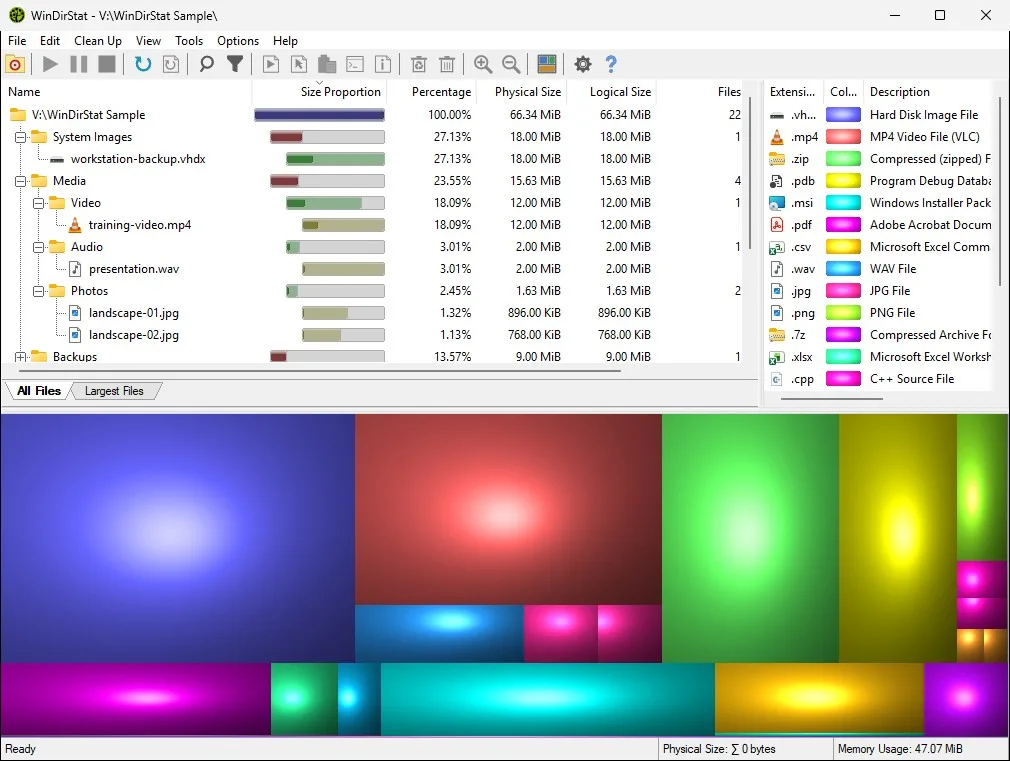
Scan a folder or a drive
WinDirStat finds large files by walking a target you choose. The README names flexible scanning for local drives, selected drives, folders, and command-line targets, with refresh, suspend, resume, stop, fast NTFS scanning, multithreading, and elevated privilege support. You do not have to scan every volume. If D:\Photos filled, scan that folder. If C:\Users filled, scan that folder. Whole-drive scans are there when you want the volume picture.
Install with the README command when App Installer is present:
winget install -e --id WinDirStat.WinDirStatRelated: install on Windows, winget command, guides, and disk space analyzer. Portable zip or MSI: portable or MSI. Default manual file on GitHub is WinDirStat-x64.msi. ARM64 and x86 sit on the same tag.
Let the walk finish. Refresh if the tree changed. Suspend and resume if you need the PC for something else. Stop if you picked the wrong target. Elevated privilege support is for directories that look empty until backup privileges apply. If Program Files looks suspiciously small, rerun elevated and compare.
Largest Files view
README views include All Files, Largest Files, Duplicate Files, Search Results, File Watcher, Extension, and Treemap. Largest Files is the list people open after Explorer Properties sat on a total. It is the same scan, sorted toward the heaviest files. It is not a second engine.
Open Largest Files. Read the path, size, and type. A single ISO, VHDX, or video often explains a “full” drive. Several large files in one folder point at that folder, not at Windows. Jump to the same object on the treemap. Reading the picture: read the treemap.
All Files is the broader list. Search Results is for a regex or a name you already suspect. Duplicate Files is hash grouping, a different job: duplicate files by hash. Do not treat a duplicate group as “the largest file” unless the hash group is also huge.
Sort the directory list
The directory tree is sortable. Sort by size. The first child under a hot folder is usually the hog. Sortable details named in the README: logical/physical size, percentages, item counts, attributes, owner, modified time, free/unknown space, hardlinks, and hash prefixes. Owner and modified time help when two folders have similar names. Item counts help when a folder is large because of millions of tiny files rather than one ISO.
Percentages tell you how much of the parent a child owns. If a child is 90 percent of D:\, you can ignore the rest until that child is understood. Free and unknown space are not files. Do not plan to delete them.
Explorer folder Properties already walked a tree for a total. This list is that walk with names: switch from folder Properties. Move off Explorer: move off Explorer. Storage settings still show a free-space number: check storage on a PC.
Jump with the treemap
Larger files and folders take larger areas. Click the biggest rectangle. The directory list should select the same object. Zoom into a parent when the children are specks. Reselect the parent when you zoomed past the hog. Extension labels show the type on the map. If the map is one color, the extension list already named the type.
KDirStat or SequoiaView styling is configurable. Pick the layout you can read. Logical or physical sizing applies to the map as well as the columns. Switch the mode when a sparse or compressed file looks “large” in one mode and small in the other.
Save or reload scans if you want to return without walking again. CSV scan import/export is there if you need a spreadsheet. That CSV is this project’s record, not an Explorer Properties import.
Filters that shrink the hunt
Search, duplicate detection, and filtering in the README include regular expressions, path/name filters, size filters, and reparse-point exclusions. Size filters hide the small objects so Largest Files and the tree stay on the threshold you care about. Path and name filters drop trees you already trust. Reparse-point exclusions stop junctions from inflating the walk.
Cloud-file safeguards are named next to those filters. Online-only placeholders can look like large files until you know they are cloud. Do not delete a placeholder thinking you reclaimed a local 40 GB. Hardlink deduplication is named for the duplicate view. For large files, hardlink columns tell you whether two names share allocation.
File Watcher records created, deleted, modified, and renamed events. Use it after you already found a hog and you want to see whether an installer is still writing. It is not a substitute for Largest Files.
| Target | When to use it |
|---|---|
| One folder | You already know which tree filled |
| Selected drives | Two volumes in one pass |
| Whole local drive | You need the volume picture |
| Command-line target | You launch from a prompt with a path |
| Largest Files | Heaviest files after the walk |
| Directory list sorted by size | Heaviest folders and their children |
| Treemap | Area jump to the same hog |
| Size filter | Ignore objects under a threshold |
| Elevated scan | Protected trees looked empty |
Logical versus physical size
A “large file” on logical size may be sparse. A “large file” on physical size may be uncompressed. Sort both columns before you delete. NTFS compression, sparse files, and hardlinks are why people argue with Properties. The README lists both sizes on purpose.
Hibernate files, page files, and container images are common hogs. Windows maintenance shortcuts in the README include Disk Cleanup, hibernate files, VHDX optimization, shadow copies, and NTFS compression. Those are cleanup tools, not Largest Files itself. After you have a name, move to cleanup from a scan. Do not delete C:\Windows or WinSxS from a list click.
WizTree is a different scanner, MFT-first: vs WizTree. TreeSize: vs TreeSize. SpaceSniffer: vs SpaceSniffer. For this job, stay on Largest Files plus the size-sorted tree on a local WinDirStat scan.
After you have a name
Copy the path. Select in Explorer if you want the shell view. Show properties. Then decide. Opening items, copying paths, selecting in Explorer, invoking the Explorer context menu, and opening Command Prompt or PowerShell are built-in actions. Deleting is later. Recycle Bin first.
Fetch stays on GitHub Releases, winget id WinDirStat.WinDirStat, Store 9ph1gl95p3wf, or links from windirstat.net. Safety: is this disk space analyzer safe. Releases: open source disk space analyzer releases. GitHub: open source disk space analyzer on GitHub. Safe download: download safely. This computer: disk space analyzer for this computer. About: about. Disk analyzer: disk analyzer. How to install winget: how to install winget. License: LICENSE.md.
Frequently asked questions
How do I find large files with this disk space analyzer?
Scan a drive or folder, then open Largest Files, or sort the directory list by size. The treemap shows the same objects as area. Related: read the treemap.
Can I scan one folder instead of a whole drive?
Yes. The README names local drives, selected drives, individual folders, and command-line targets. Pick the folder that filled. You do not have to walk every volume.
Does Largest Files use the same scan as the treemap?
Yes. Largest Files is a README view on the current scan, with All Files, Duplicate Files, Search Results, File Watcher, Extension, and Treemap. It is not a second walk.
Why does a large file look small on disk?
Switch logical versus physical size. Sparse files, NTFS compression, and hardlinks change allocation. Sortable details include both sizes, percentages, and hardlinks.
What should I do after I find the hog?
Confirm the path, then use cleanup actions. Recycle Bin first. Do not delete Windows folders blindly. Guide: cleanup from a scan.