Duplicate detection by hash
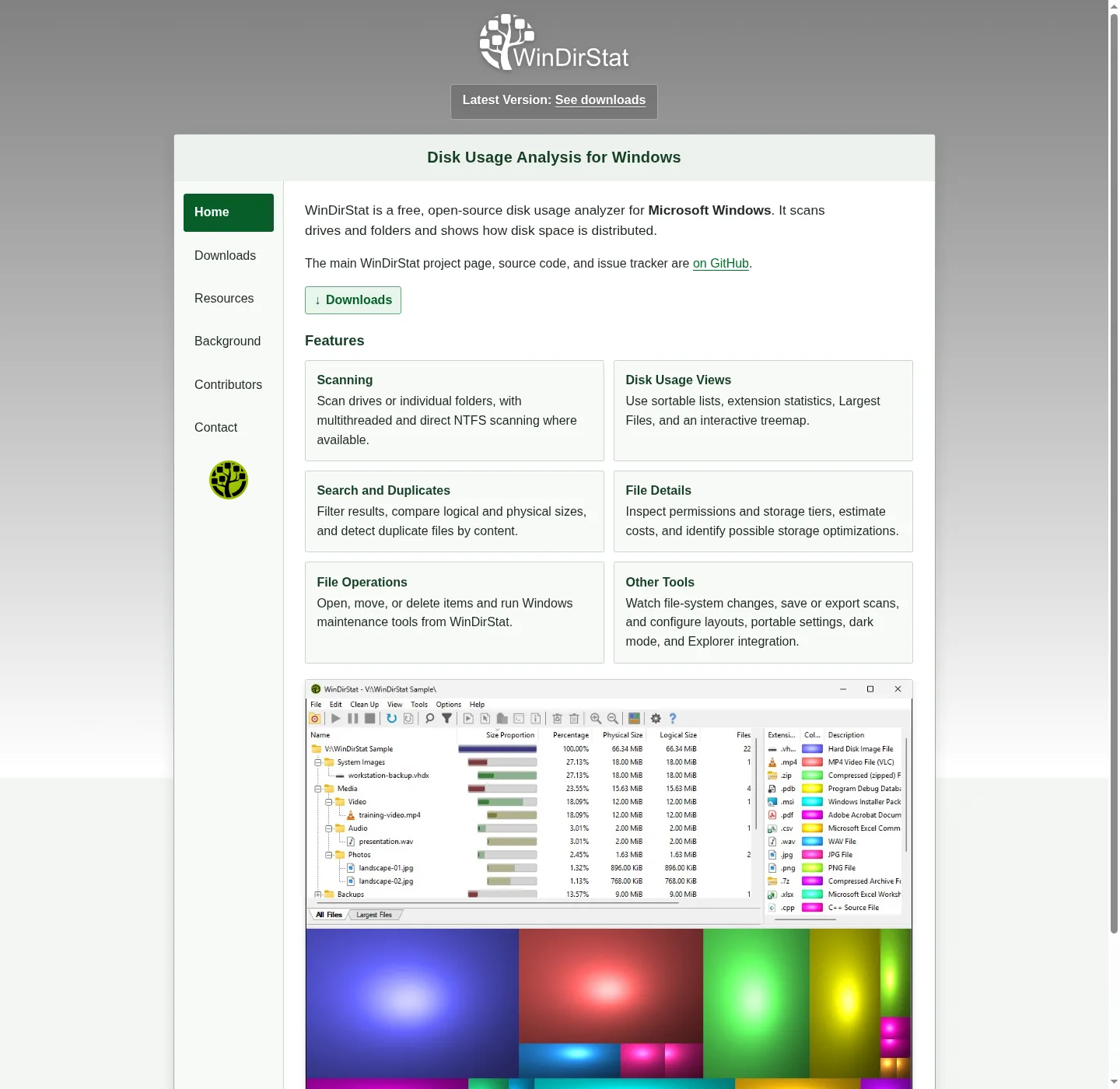
WinDirStat groups duplicate files by hash after it has a scan. The README names Search, duplicate detection, and filtering together: regular expressions, configurable hash algorithms, cloud-file safeguards, hardlink deduplication, path/name filters, size filters, and reparse-point exclusions. Duplicate Files is a first-class view, next to All Files, Largest Files, Search Results, File Watcher, Extension, and Treemap.
Install if the app is not on the PC:
winget install -e --id WinDirStat.WinDirStatRelated: install on Windows, guides, disk space analyzer, and find large files. Scan the folder or drive that might hold copies. Then open Duplicate Files. A hash group is content match, not a similar name. backup.iso and backup (2).iso can differ. Two files named IMG_0001.jpg in different folders can match.
Same size is not a verdict. Two 4 GB files can be different videos. Wait for the hash. Hash prefixes appear in sortable details so you can see a prefix in the directory list without leaving the tree.
Configurable hash algorithms
The README says hash algorithms are configurable. It does not lock public copy to one algorithm name. Use the setting the installed build exposes. Changelog notes for the project name xxHash (XXH3) as a selectable file hashing algorithm, and they name selectable file hash algorithms as a feature. Do not invent extra algorithm names the README and changelog never printed.
Cancellable file hashing progress is named in current-release notes. Large trees take time to hash. Let the progress finish. Stop if you pointed at the wrong volume. Fast NTFS scanning and multithreading apply to the walk. Hashing duplicate candidates is extra work after sizes and names are known.
Do not treat a blog post that names a different digest as the product setting. Open the installed settings. Pick an algorithm the build lists. Stay on that choice for the scan you are about to export.
Hardlinks versus copies
Hardlink deduplication is named in the README. NTFS can give two directory entries one allocation. Sortable details include hardlinks. Deleting one name may not reclaim the bytes if another name still points at the data. Read the hardlink column before you empty a duplicate group.
The treemap can show logical or physical sizing. Physical size is closer to allocation. Logical size is file length. A hardlinked pair can look like two large files logically and one allocation physically. Reading area: read the treemap. Largest Files can still list both names: they are large, even when they share clusters.
Two copies on two folders, each with its own allocation, are the reclaim case. Hash match plus two physical sizes is the usual waste. Hash match plus a hardlink count is a naming case. Do not mix those in one delete.
Cloud files and other filters
Cloud-file safeguards are named next to duplicate detection. Online-only placeholders can hash poorly as “duplicates” of each other or look like local copies they are not. Keep those safeguards on unless you know the files are fully local. Path and name filters drop trees you do not want hashed. Size filters skip tiny files so hashing stays on objects worth reclaiming. Reparse-point exclusions stop junctions from feeding the same tree twice.
Search with regular expressions when you already know a pattern, for example a camera export prefix. Search Results is a view. Duplicate Files is a view. They cooperate. A search that finds two names is not a hash group until Duplicate Files says so.
File Watcher records created, deleted, modified, and renamed events. A copy operation you run while watching will show up there. It is not duplicate detection. Use it after you delete one side of a group if you want to confirm the filesystem event.
Hash prefixes in the list
Sortable file details include hash prefixes. That column is a preview, not the full Duplicate Files grouping. Once hashing has run, prefixes help you spot a run of matching files while you still sit in the directory tree. Open Duplicate Files for the groups.
CSV scan import/export saves or reloads a scan. Duplicate CSV export is separate: it writes the duplicate list. JSON support for saving and loading scan results and duplicate lists appears in project changelog notes. Daily users can stay on CSV if that is the file they already pass around. Neither export is an installer. Neither export is a winget package.
duplicate CSV exportKeep exports on disk you control. There is no account. There is no cloud upload named in the README. Portable settings exist if you want the algorithm choice to travel with a zip folder.
| README topic | What it means for duplicates |
|---|---|
| Duplicate Files view | Groups after hashes match |
| Configurable hash algorithms | Pick in settings. Do not invent names |
| xxHash (XXH3) | Named in changelog as a selectable algorithm |
| Hash prefixes | Column in sortable details |
| Hardlink deduplication | Shared allocation is not two copies |
| Cloud-file safeguards | Placeholders are not local reclaim |
| Size and path filters | Limit what gets hashed |
| Duplicate CSV export | List of groups for a spreadsheet |
| Cancellable hashing progress | Stop a long hash if the target is wrong |
After you have a pair
Confirm both paths. Open items, copy paths, select in Explorer, or show properties. Those are built-in actions. Then decide which name to keep. Moving files is available. Deleting files and emptying folders are available. Recycle Bin first. Cleanup walk: cleanup from a scan. Do not delete Windows folders because two system names hashed alike in a way you do not understand.
Duplicates are not the same job as Largest Files. A 40 GB unique video is a large file with no pair. Two 200 MB copies are a hash group with modest reclaim. Do both views when a drive is full. Explorer Properties never hashed: switch from folder Properties. Other scanners: vs WizTree, vs TreeSize, vs SpaceSniffer.
Keep the fetch official
Files from GitHub Releases, winget id WinDirStat.WinDirStat, Microsoft Store 9ph1gl95p3wf, Chocolatey, Scoop, or links from windirstat.net. Safety: is this disk space analyzer safe. Download walk: download safely. Releases: open source disk space analyzer releases. GitHub: open source disk space analyzer on GitHub. Portable or MSI: portable or MSI. Winget: winget command. This computer: disk space analyzer for this computer. About: about. Disk analyzer: disk analyzer. Check storage: check storage on a PC. Move off Explorer: move off Explorer. How to install winget: how to install winget. License: LICENSE.md. README: project README.
Frequently asked questions
Can this disk space analyzer find duplicate files?
Yes. The README names duplicate detection by hash, with configurable hash algorithms. Open the Duplicate Files view after a scan. Related: find large files.
Which hash algorithm does it use?
The README says hash algorithms are configurable. It does not print a single locked algorithm name. Pick the algorithm in settings. Changelog notes also name xxHash (XXH3) as a selectable file hashing algorithm.
Are hardlinks treated as duplicates?
Hardlink deduplication is named in the README next to duplicate detection. Two names can share one allocation. Read hardlink columns before you delete a match that is actually a link.
Can I export the duplicate list?
Yes. The README names duplicate CSV export, plus CSV scan import/export. Duplicate CSV is a list of hash groups, not a second installer.
Do same-size files count as duplicates?
Not by themselves. Detection is by hash. Same length is a hint. The Duplicate Files view groups after hashes match. Hash prefixes also appear in sortable details.