What Explorer Properties shows
Right-click a folder in Explorer, open Properties, wait. Windows walks files and prints size and size on disk. That dialog is a total. It is not a treemap. It is not an extension list. It is not a duplicate hash. Storage settings under Windows Settings give another free-space view. Those built-in tools stay useful for a number. They stop short of showing which subtree ate the volume.
Related keep notes: check storage on a PC and move off Explorer. Guide index: guides. Home: disk space analyzer.
WinDirStat is the local scan these notes install:
winget install -e --id WinDirStat.WinDirStatWhat a local scan adds
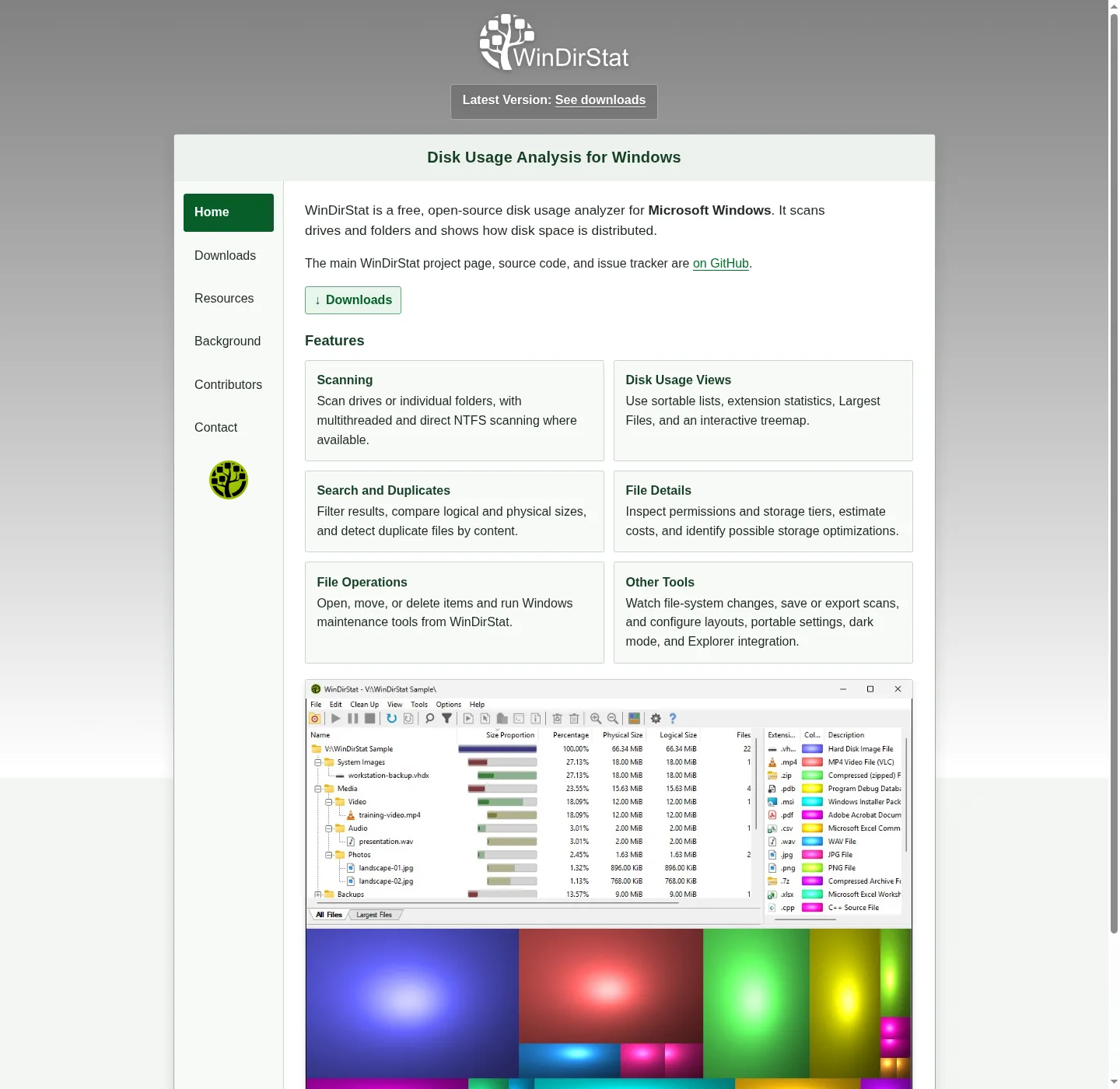
After a WinDirStat walk you get a sortable directory tree, an extension/type breakdown, and an interactive treemap. Larger files and folders take larger areas. README views also include Largest Files, Duplicate Files, Search Results, and File Watcher. You can inspect logical versus physical size. You can save or reload scans. You can export CSV.
That is why people leave Properties. The dialog already told them the folder is large. They need to see which child is large, which extension, which file. Reading the picture: read the treemap. Finding hogs: find large files.
No account. Scans stay on the PC. License GPL-2.0. Native C++. Files from GitHub Releases, winget, Microsoft Store 9ph1gl95p3wf, or the other README package managers.
Scan one folder, not the whole drive
You do not have to scan every volume. The README names individual folders as a target. If Properties was open on D:\\Photos, scan that folder. If it was C:\\Users, scan that folder. Whole-drive scans are available when you want them. Selected drives are available when you want two volumes in one pass.
Command-line targets exist for people who already launch from a prompt. Daily use is still: open the app, pick the folder. Fast NTFS scanning and multithreading are named in the README. Elevated privilege support is there when a directory needs it. If a folder under Program Files or another protected tree looks empty, rerun elevated, then compare.
Reparse-point exclusions and path/name filters are in the README for scans that otherwise wander into junctions. Size filters help when you only care about objects over a threshold.
Logical size versus physical size
Properties shows size and size on disk. WinDirStat can show logical or physical sizing, including in the treemap. Sparse files, compression, and hardlinks are why those two numbers diverge. The README lists sortable details for logical/physical size, percentages, item counts, attributes, owner, modified time, free/unknown space, hardlinks, and hash prefixes.
If Properties said a folder is 40 GB and the treemap looks smaller, switch the sizing mode before you delete. Compressed NTFS trees and sparse VMs are the usual surprise. NTFS compression is also a cleanup shortcut the README names. Do not flip compression on a whole system volume as a first experiment.
After the first scan
Sort the directory list by size. Open Largest Files. Glance at the extension list: one video type or one disk-image type often explains the Properties total. Zoom the treemap into the hot folder. Then stop. A scan is a map. Deleting from the map is a separate step: cleanup from a scan. Duplicates: duplicate files by hash.
Windows Disk Cleanup, Recycle Bin empty, and user-defined cleanup actions are built in. Do not delete C:\\Windows because a box looks big. Do not delete WinSxS from a treemap click. Use the Disk Cleanup shortcut when the hog is a Windows component store habit, not a random folder.
Save the scan if you want to reload later. CSV export is there if you want a spreadsheet. That CSV is not an Explorer Properties import. It is WinDirStat’s own record.
How to install, then scan
On Windows 10 1809+ or Windows 11, run the winget command. On any listed Windows version, take WinDirStat-x64.msi from GitHub Releases. ARM64: WinDirStat-arm64.msi. Portable: WinDirStat.zip or WinDirStat.7z. Chooser: portable or MSI. Winget detail: winget command. Full Windows walk: install on Windows. Safe download: download safely.
Unofficial sites copy the product name. Stay on GitHub, winget, the Store listing, or links from windirstat.net. Safety: is this disk space analyzer safe.
| From Properties | Do this in WinDirStat |
|---|---|
| Folder path in the dialog | Scan that folder, not necessarily the whole drive |
| Size total | Directory list sorted by size |
| Size on disk | Physical sizing / physical size columns |
| No treemap | Treemap view, zoom into the hot child |
| No extension split | Extension list |
| No duplicates | Duplicate Files by hash |
| Slow wait on a huge tree | Let the scan finish, then save or export CSV |
Keep Storage settings if you need them
Windows Storage settings remain a fine free-space number. Temporary files cleanup in Settings is still a Windows tool. WinDirStat does not replace Settings. It replaces the moment you stare at Properties and still cannot see the hog.
Other scanners exist. TreeSize Free: vs TreeSize. SpaceSniffer: vs SpaceSniffer. WizTree: vs WizTree. Pick by job. For this migrate, the move is Explorer Properties to a local WinDirStat scan of the same path.
Releases: open source disk space analyzer releases. GitHub: open source disk space analyzer on GitHub. This computer: disk space analyzer for this computer. About: about. Disk analyzer: disk analyzer. How to install winget: how to install winget. Product home: windirstat.net. License: LICENSE.md.
Frequently asked questions
Can I import Explorer Properties into this disk space analyzer?
No. Folder Properties is a size total, not a project file. Scan the same folder in WinDirStat. Related: move off Explorer.
Why is Explorer Properties slow?
Windows walks the tree to sum size. On a large drive that walk can sit on a Properties dialog for a long time. WinDirStat is built to scan and then show where the bytes went. Related: check storage on a PC.
Can I scan one folder instead of a whole drive?
Yes. The README names local drives, selected drives, individual folders, and command-line targets. Pick the folder Properties was summing.
Should I keep Windows Storage settings?
Keep Storage settings when you only need a free-space number. Use WinDirStat when you need a treemap, extension list, or largest-files view. Guide: find large files.
How do I install after I leave Properties?
Run winget install -e --id WinDirStat.WinDirStat or take WinDirStat-x64.msi from GitHub Releases. Guide: install on Windows.